> For the complete documentation index, see [llms.txt](https://wiki.cubecadia.net/llms.txt). Markdown versions of documentation pages are available by appending `.md` to page URLs; this page is available as [Markdown](https://wiki.cubecadia.net/start-here/welcome/how-to-join.md).
# 🪴 ⟢ How to Join
We offer both Java and Bedrock gameplay on CubeCadia!
## How to join on Java
1. Open up Minecraft and choose 1.21.x and up (We are 1.21.8 native)
2. Click on "Multiplayer" to open up the servers menu
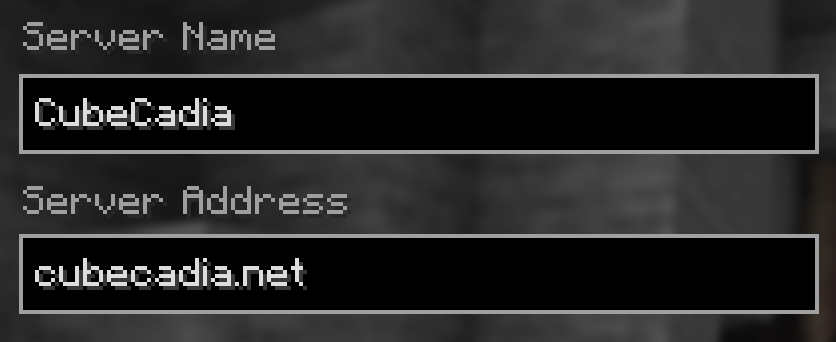
3. Click "Add Server" and put in the following
4. Enter into Server Address: `cubecadia.net`
## How to Join on Bedrock Edition
1. Click the 'Play' button from the title screen
2. Next click on the 'Servers' button
3. Then click on 'Add Server' to open up a similar menu as above.
4. For the IP, you'll put `cubecadia.net`
5. For the Port, you'll put `19132`
## How to join on Xbox (Bedrock)
Follow the tutorial below, and you will fill this in when the video asks:\
IP: `cubecadia.net`\
Port: `19132`
{% embed url="" %}
## How to join on Playstation (Bedrock)
Follow the tutorial below, and you will fill this in when the video asks:\
IP: `cubecadia.net`\
Port: `19132`
{% embed url="" %}
## How to join on the Switch (Bedrock)
Follow the tutorial below, and you will fill this in when the video asks:\
IP: `cubecadia.net`\
Port: `19132`
{% embed url="" %}
## How to join on IOS (Bedrock)
IOS systems use different connections and so we need to use a different IP in order for players on IOS platforms to join. Simply do the following:\
\
1\. Open Minecraft on your IOS device\
2\. Tap the "PLAY" button on the first screen you see\
3\. On the top you'll see "Worlds" "Realms" and "Servers". You will tap "Servers"\
4\. Look at the left side and tap the "+ Add server" button.\
5\. You'll put the following below:\
Server name: `CubeCadia`\
Server address: `bedrock.cubecadia.net`\
Port: `19132` \
6\. Tap the bottom right "Add and play" green button.\
7\. Enjoy the CubeCadia experience!